How-to guide · MM Studio · October 7, 2026
Repeat a video segment for listening or practice
Start with one phrase, a short musical passage, or a movement you want to study. This workflow takes an existing video through import, a named loop, and an ordered practice session you can return to. It reflects the App Store listing for MMPlayer 5.10, which supports iPhone and iPad on iOS 18 / iPadOS 18 or later. Its Apple Watch companion requires watchOS 11.6 or later.
Step by step
-
1. Import a playable practice video
Choose an existing video from Files or Photos, or import it through another app’s share action. For a video on your computer, start MMPlayer’s Wi-Fi transfer and use the connection details and verification code shown in the app from a browser on the same local network. Play a short section first to check the picture, sound, and timeline.
-
2. Mark A and B around one practice unit
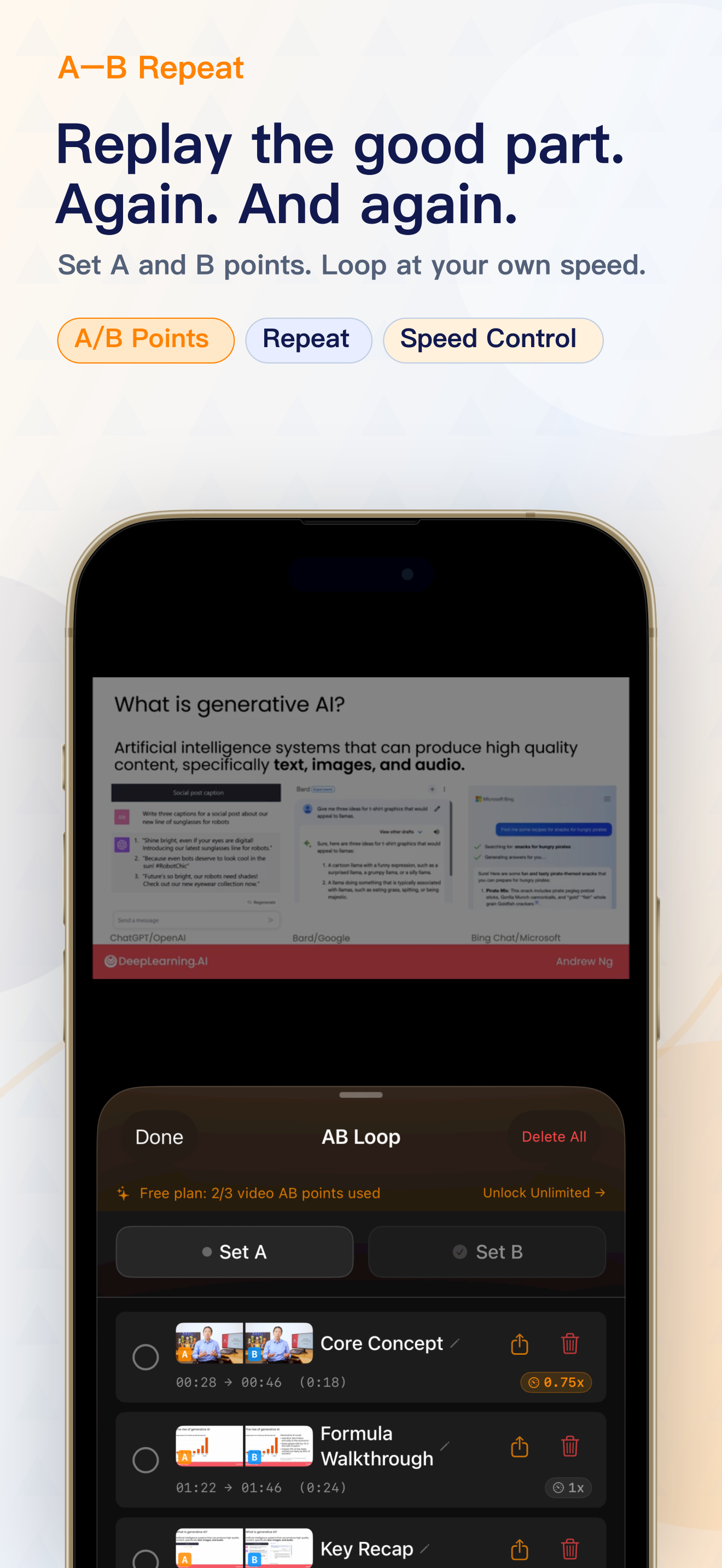
Set point A where the passage starts and point B where it ends, then play the loop. Leave enough room for the beginning and ending of a spoken phrase or movement. Watch or listen through one full repeat before practicing; adjust the boundaries if they cut off anything you need.
-
3. Save a useful name and speed
Give the segment a name that describes the work, such as “Lesson 2: asking for directions.” Slow it down for closer listening or practice, then increase the speed when useful. A video can hold multiple named segments with their own speeds. Use collections to group related segments by course or practice task.
-
4. Arrange a practice playlist
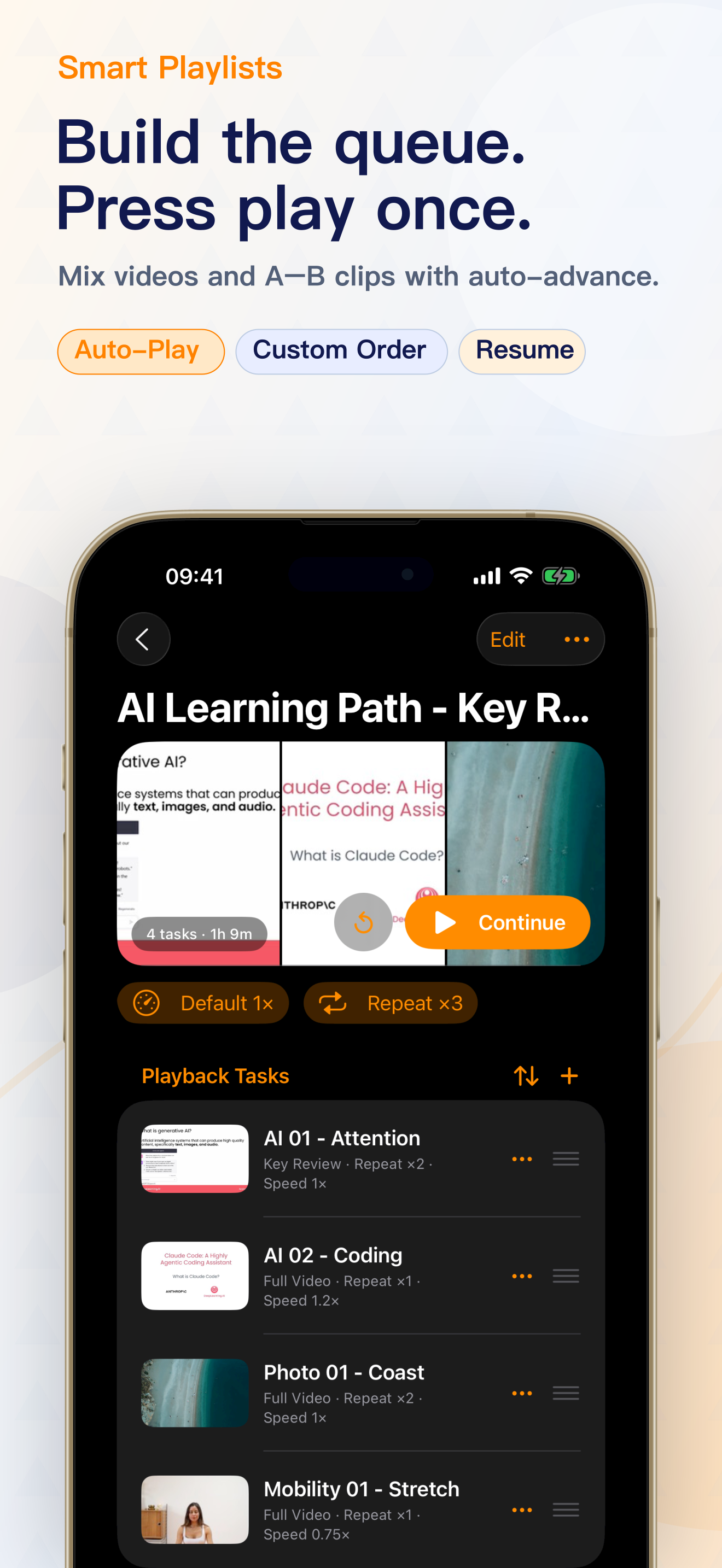
For several lessons, add videos to a playlist and drag tasks into order, or use natural title sorting. Each task can play the full video or an AB list with its own speed and repeat count. A playlist also has a default speed and total repeat count. Test a short session first so the sequence includes the material you intend to practice.
-
5. Choose whether to resume or restart
When you return, resume the saved task, round, and timestamp. If you want a fresh run through the course, confirm clearing progress before replaying. A missing or incompatible task is skipped; playback stops with a message if an entire round is unplayable. Check any skipped lesson in the library before relying on it in the next session.
Know the limits
- The free version supports AB loops on 3 videos and 1 playlist. Pro expands these limits; check the current in-app purchase screen for plans and prices.
- A file extension alone does not establish compatibility. MP4, MOV, M4V, and other containers that need on-device preparation are still subject to their video and audio codec combinations.
- This workflow uses existing local videos. Private playlists use private media only and keep their progress separate from the public library.
Common questions
Why does an imported MKV or AVI fail to play?
MKV and AVI describe containers, which can hold different video and audio codecs. MMPlayer can prepare compatible files on device, but the extension alone is not enough. Test the file on its own. For support, include the app version, device and OS, and known container and codec details rather than sending a private video.
Do I need to set A/B again for every session?
You can save multiple named segments with their own speeds and organize them into collections. Return to the video and its saved segment when you want to practice again. Names that include the lesson and topic make the right segment easier to find.
How is resuming different from restarting?
Resuming uses the saved task, round, and time position so you can continue a session. Restarting clears that progress after confirmation and suits a fresh pass through the course. Check your current position before choosing to reset it.
Try it in MMPlayer
Check the App Store and in-app information for feature access, current pricing, and purchase terms. The interface may change with updates.
Download on the App StoreSupport and usage information →
References