How-to guide · MM Studio · October 7, 2026
Move files between iPhone and a computer browser
MyFiles browser transfer lets you bring computer files to your phone or download app-managed files to your computer. It connects over the same local network and needs the app to stay in the foreground during transfer. This guide follows the App Store description for MyFiles 1.0, which requires iOS 18 or later.
Step by step
-
1. Use the same trusted Wi-Fi and choose the files
Connect the computer and iPhone to the same trusted Wi-Fi network, then open MyFiles on the phone. Identify the files you intend to upload or download and the folders involved. The browser works with app-managed files through a local connection; it is not a way to access the phone remotely across networks.
-
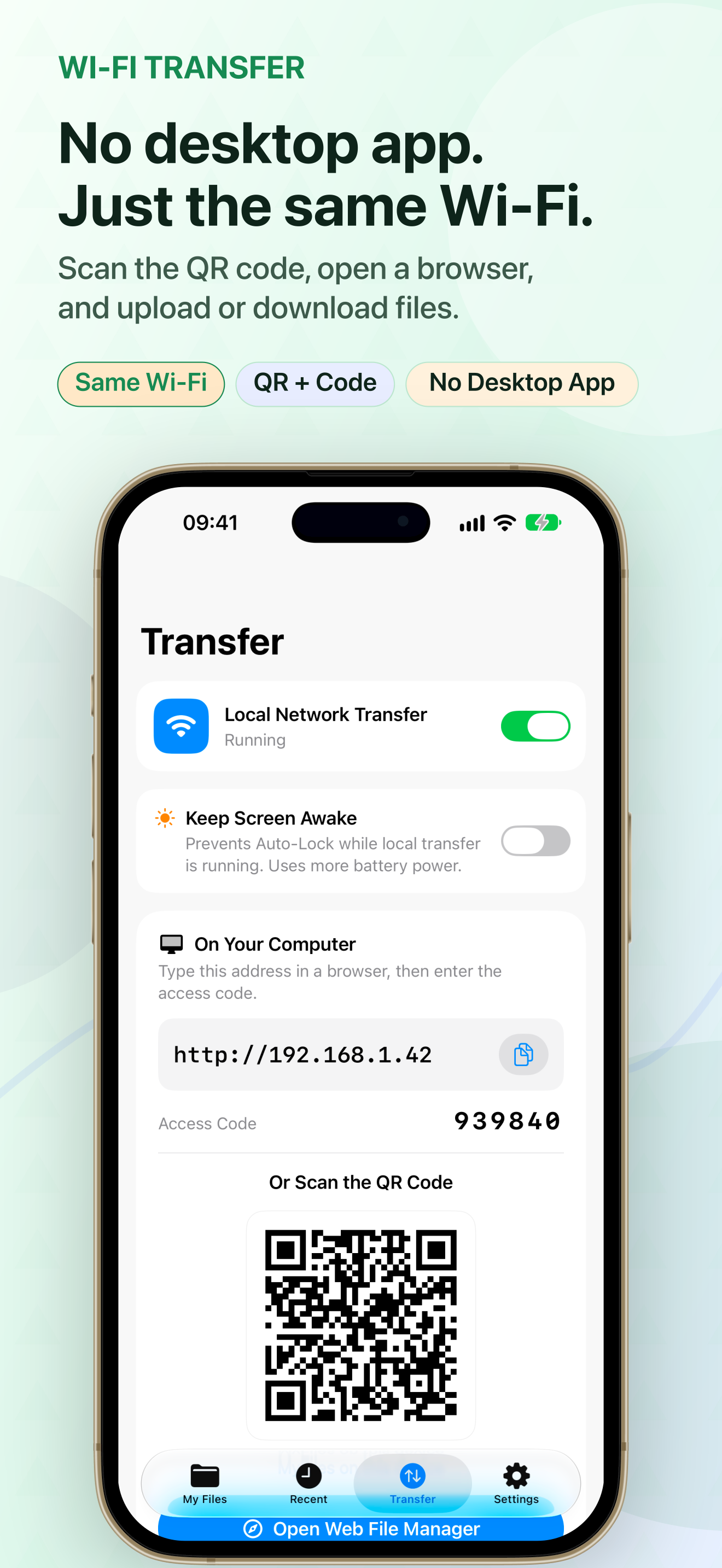
2. Start local transfer and use the current address
Start local transfer in MyFiles and enter the address currently shown in the app into your computer’s browser. If the connection asks for an access code, use the details for that session. Do not copy an address or code from a tutorial screenshot or share yours publicly. Keep MyFiles in the foreground until the transfer is finished.
-
3. Open the destination folder before uploading
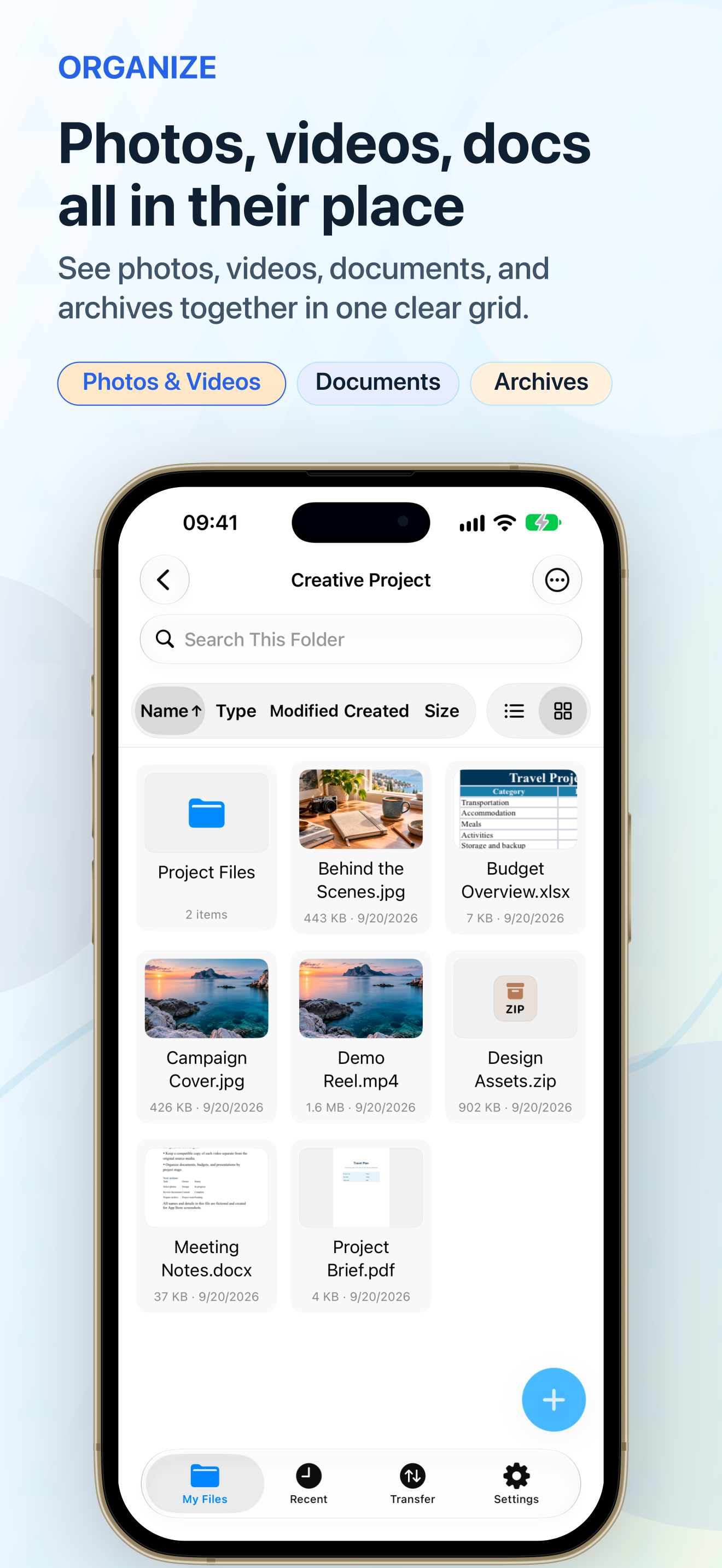
In the browser, open the folder where the files should go. Create a clearly named folder first if needed, then drag one or more files onto the page. Uploads go to the current folder. Wait for transfer to finish and check the names and count on the phone and web page before continuing.
-
4. Organize names and separate personal files
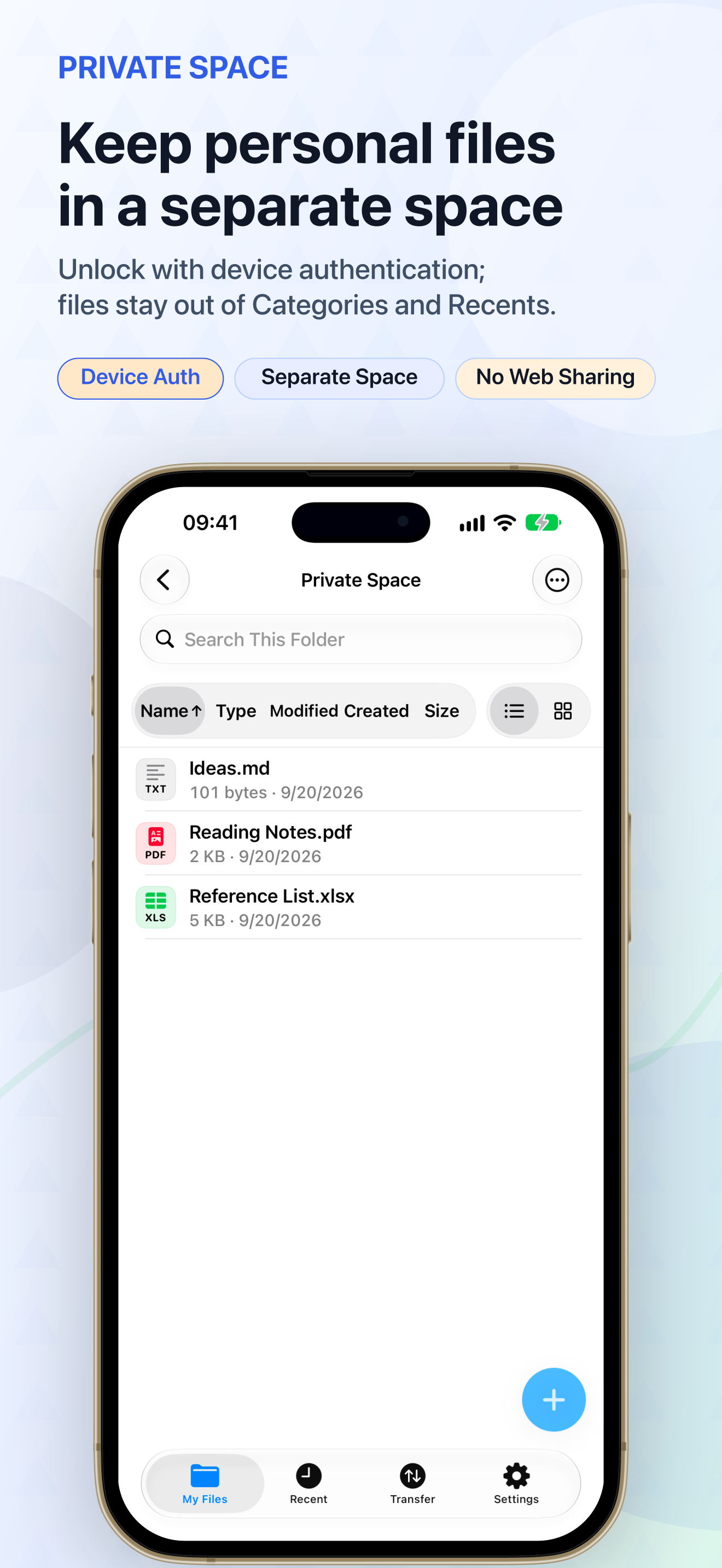
Use folders and renaming to make related documents easy to identify. If personal files should be separate from everyday browsing, move them into Private Space in the app and use device authentication to access them. Private files are excluded from regular categories, global search, Recents, browser sharing, and this app’s iCloud sync, so that space is not a browser transfer folder.
-
5. Download, verify, and end the session
Download the files you need on the computer, confirm the browser has finished downloading, and open them to check the contents. A video that will not play in the web page may still have transferred correctly, so inspect the downloaded file. End the local transfer session when finished, and retain originals until another copy has been checked.
Know the limits
- Local transfer requires the same local network and MyFiles in the foreground. It does not provide internet remote access across networks.
- Basic file management, browser transfer, and Private Space are free. MyFiles Pro Lifetime is a one-time purchase that unlocks iCloud sync using your own Apple Account and storage; additional cloud storage is not included.
- Browser video playback depends on the browser and codecs; on-device preview support can differ. Archive support depends on format and compression method. Encrypted archives are not supported.
Common questions
What if my computer cannot open the displayed address?
Check that both devices are on the same Wi-Fi, local transfer is running, and MyFiles remains in the foreground. Recheck the current address and session details instead of relying on an old bookmark. If it still fails, check whether the network allows devices to communicate with each other; do not expose the local service to the internet as a workaround.
Why can’t I find Private Space files in the browser?
That is part of Private Space’s separation. Its files are excluded from browser sharing, regular categories, global search, Recents, and this app’s iCloud sync. Decide which files need browser access and which should remain in Private Space before you begin.
Why does an MP4 preview on the phone but not in the browser?
MP4 is a container, and its codecs may not be supported by the browser. The web page supports compatible MP4 and M4V files, subject to the browser and codec combination. Download the file and check it in compatible software rather than deleting or recompressing the original solely because web playback fails.
Try it in MyFiles
Check the App Store and in-app information for feature access, current pricing, and purchase terms. The interface may change with updates.
Download on the App Store