How-to guide · MM Studio · October 7, 2026
Combine receipts or document photos into one PDF
Start with the recipient’s instructions and a complete set of receipt, form, or document images. Ordering and checking them before export helps catch missing or sideways pages. This guide reflects Photo to PDF: Merge & Layout 1.3 on iOS 16 or later. Creating a PDF cannot recover detail that is missing from a blurry source image.
Step by step
-
1. Select the images for this document
Check whether the recipient wants one PDF, a particular document order, or a file-size limit. Import the relevant images from Photos or Files. Inspect dates, amounts, names, and page edges for missing information. Remove duplicates and unrelated photos, and retain the original images in case you need to generate the document again.
-
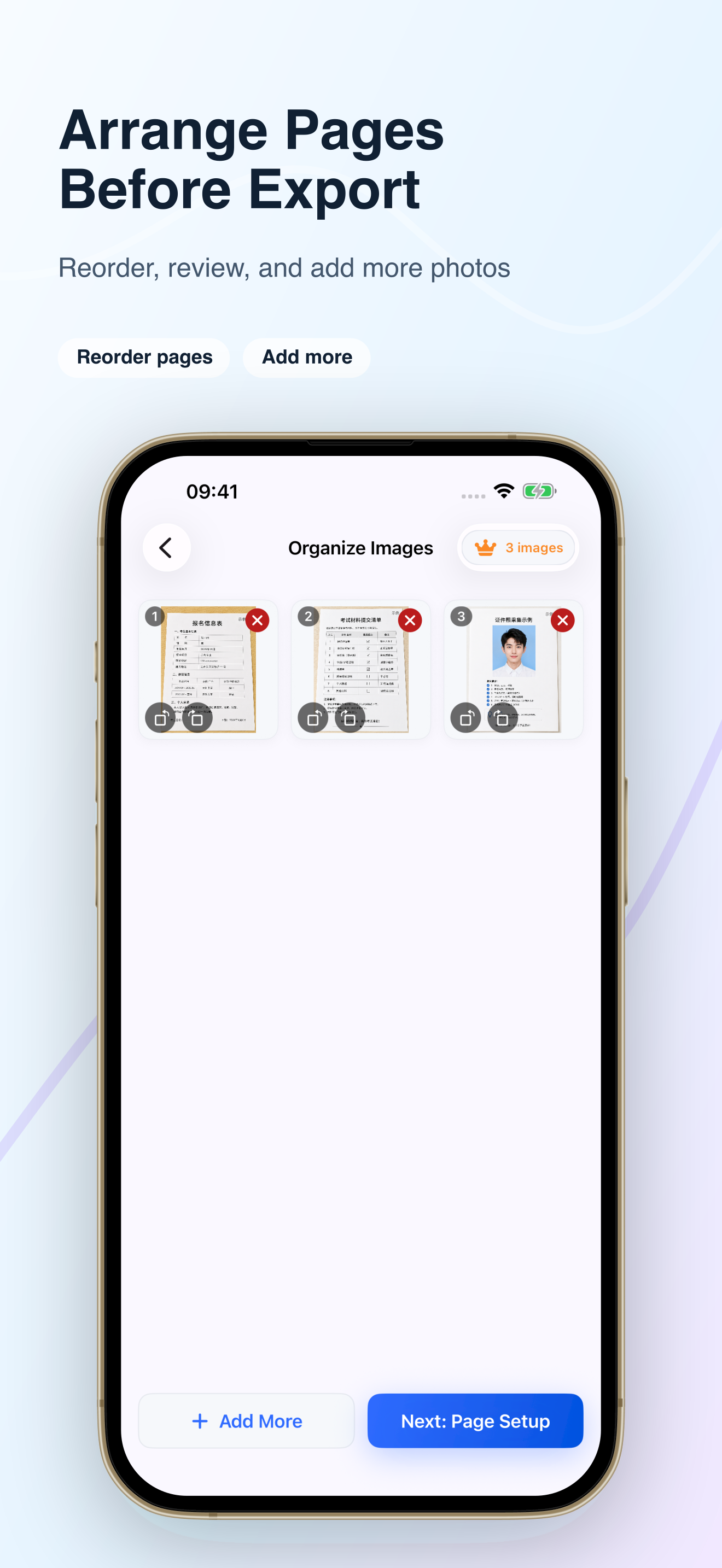
2. Arrange the order and orientation
Drag the images into the requested sequence, such as the form followed by its supporting receipts. Keep the front, back, and continuation pages of a document together. Rotate sideways images by 90 degrees and check their reading direction. Thumbnails are useful for order, but not enough to judge small text.
-
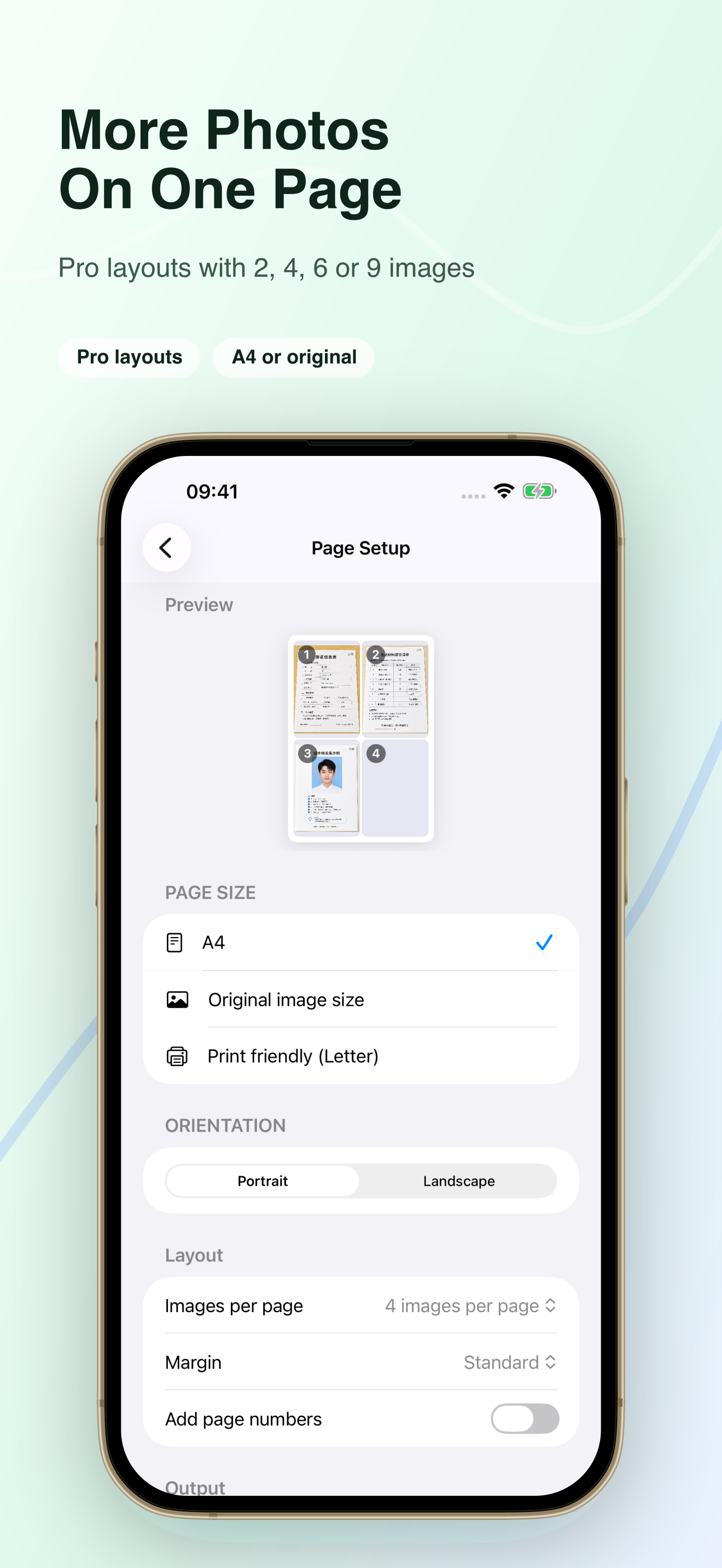
3. Choose page size and spacing
Choose A4 portrait, A4 landscape, original size, or a print-friendly layout for the destination. Try landscape for a wide table and inspect the edges; portrait may suit ordinary pages. Adjust margins and add page numbers if useful. Pro can place 2, 4, 6, or 9 images on a page, but first check that the recipient accepts a multi-image layout.
-
4. Generate and inspect every page
Generate the PDF, then review its page count, order, orientation, and spacing in preview. Zoom in on amounts, reference numbers, and small print to check that nothing is cut off or too small to read. If something is wrong, revise the images or layout and generate again before deciding which result to keep.
-
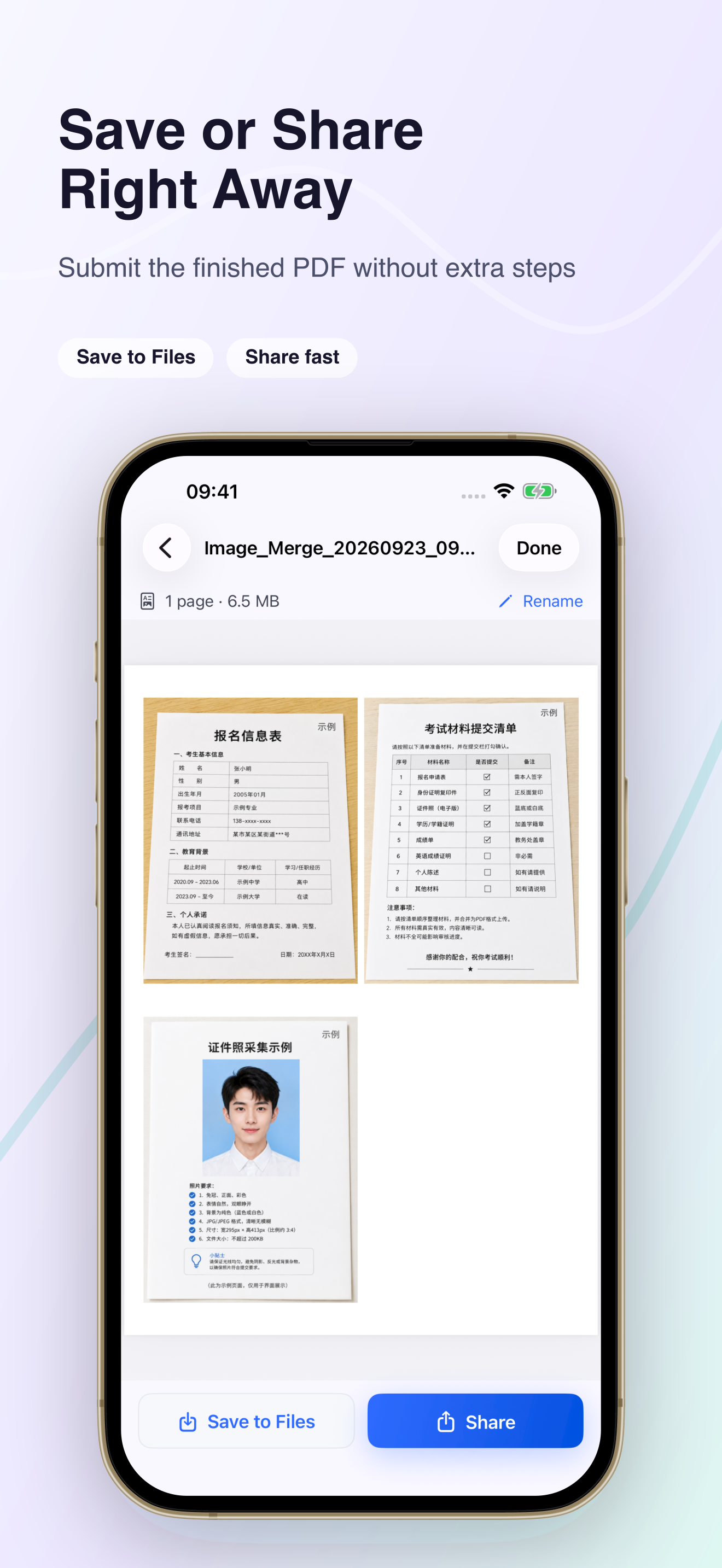
5. Name, save, and check the upload
Give the result a descriptive name, such as “2026-10-travel-receipts,” then save it to Files or use the system share sheet. When uploading, select the PDF you reviewed and check the name and size shown by the receiving service. Recent PDFs on Home can also be reopened to rename, save, or share again.
Know the limits
- The free version supports basic PDF creation. Pro provides unlimited images, unlimited PDF generations, and high-quality export. Check the app for the current free allowance and purchase requirements.
- The app works with existing images. It does not provide scanning, OCR, PDF compression, signatures, watermarks, or PDF unlocking.
- PDF size and clarity depend on source resolution, image count, and layout. Successful generation does not establish that the recipient’s upload rules are met.
Common questions
Can I search or copy the text in the photos?
The app does not provide OCR. Placing a text image in a PDF does not make that text searchable or selectable. If the recipient requires recognized text, use a suitable OCR workflow separately and review the recognized content.
What if the upload site says the PDF is too large?
First confirm you selected the new export and whether the limit applies to one file or the whole submission. Remove duplicated or unnecessary images if permitted and regenerate. If the content must stay, use a separate PDF compression tool and recheck legibility. This app does not compress existing PDFs.
How do I keep a receipt from becoming too small?
Begin with a readable source image, then choose an orientation and margins that fit its shape. Multiple images on a page leave less space for each. Use one image per page for receipts with small print, then zoom in on amounts and reference numbers before saving.
Continue preparing your document
Choose the guide for your next step. These workflows use separate apps; review the result and the recipient’s requirements after each step.
Try it in Photo to PDF: Merge & Layout
Check the App Store and in-app information for feature access, current pricing, and purchase terms. The interface may change with updates.
Download on the App Store