How-to guide · MM Studio · October 7, 2026
Put PDF pages in order and export the right files
Decide whether you need one complete document, a selected set of pages, or several separate files before editing. PDF Page Organizer separates page editing from export; larger documents, multi-file merged exports, and splitting or extracting into separate files are part of Pro.
Step by step
-
1. Keep the originals and review imported pages
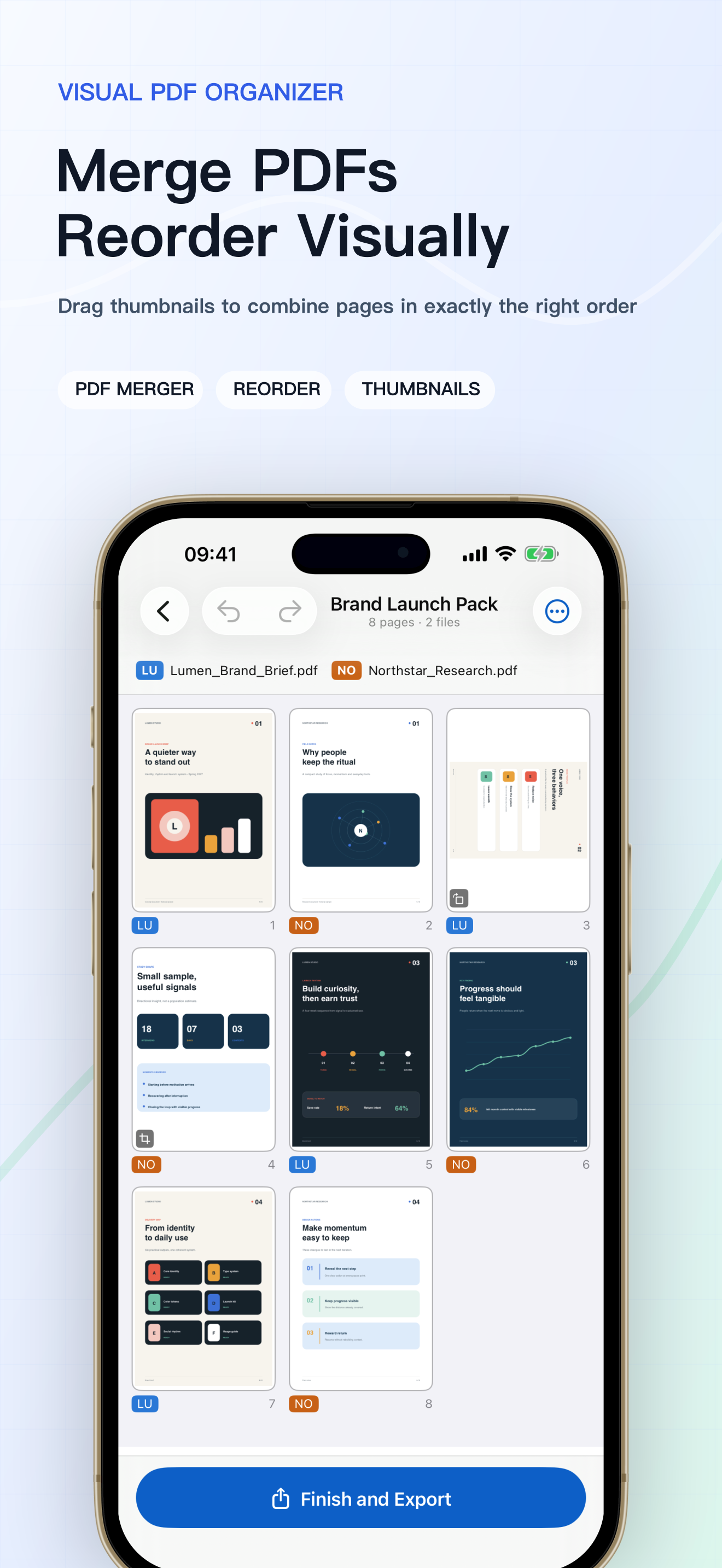
Keep a backup of important PDFs, then import the source files you need. Review their source, page count, and orientation in the thumbnail grid, looking for duplicate covers or unrelated attachments. The app edits an imported copy; keep your originals until you have checked the delivered result.
-
2. Arrange the sequence and batch-edit pages
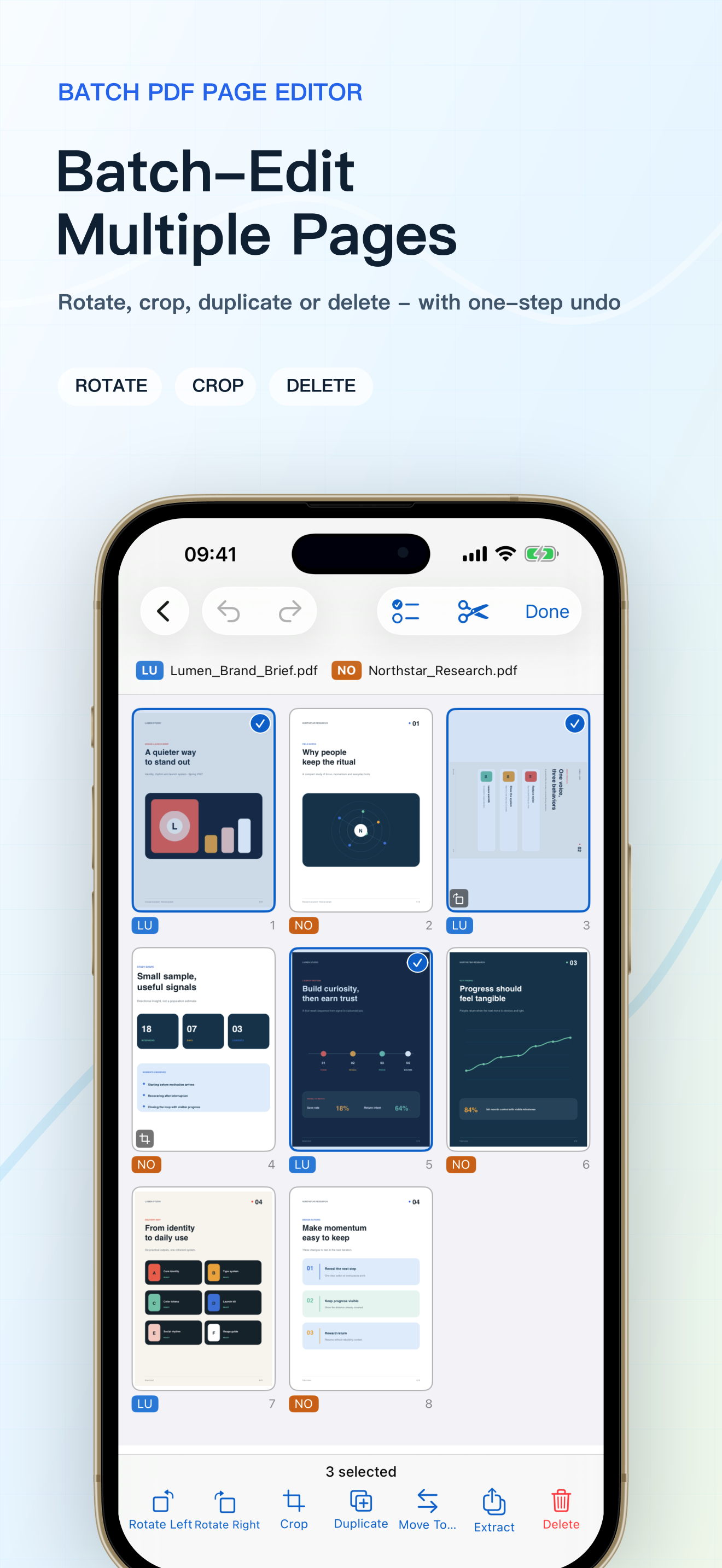
Drag thumbnails into the order required by the recipient, including the cover, main text, and attachments. Select pages that need the same rotation, deletion, duplication, or crop, and undo a mistaken action. After cropping margins, inspect text and page numbers, especially on pages with different sizes.
-
3. Choose merge, extraction, or split
Export the arranged pages as one document when you need a continuous file. Extract selected pages into a new PDF when you only need part of the material, or split when you need several deliverables. Merging multiple source PDFs on export and splitting or extracting into separate files require Pro; check the entitlement shown in the app before exporting.
-
4. Check each planned split output
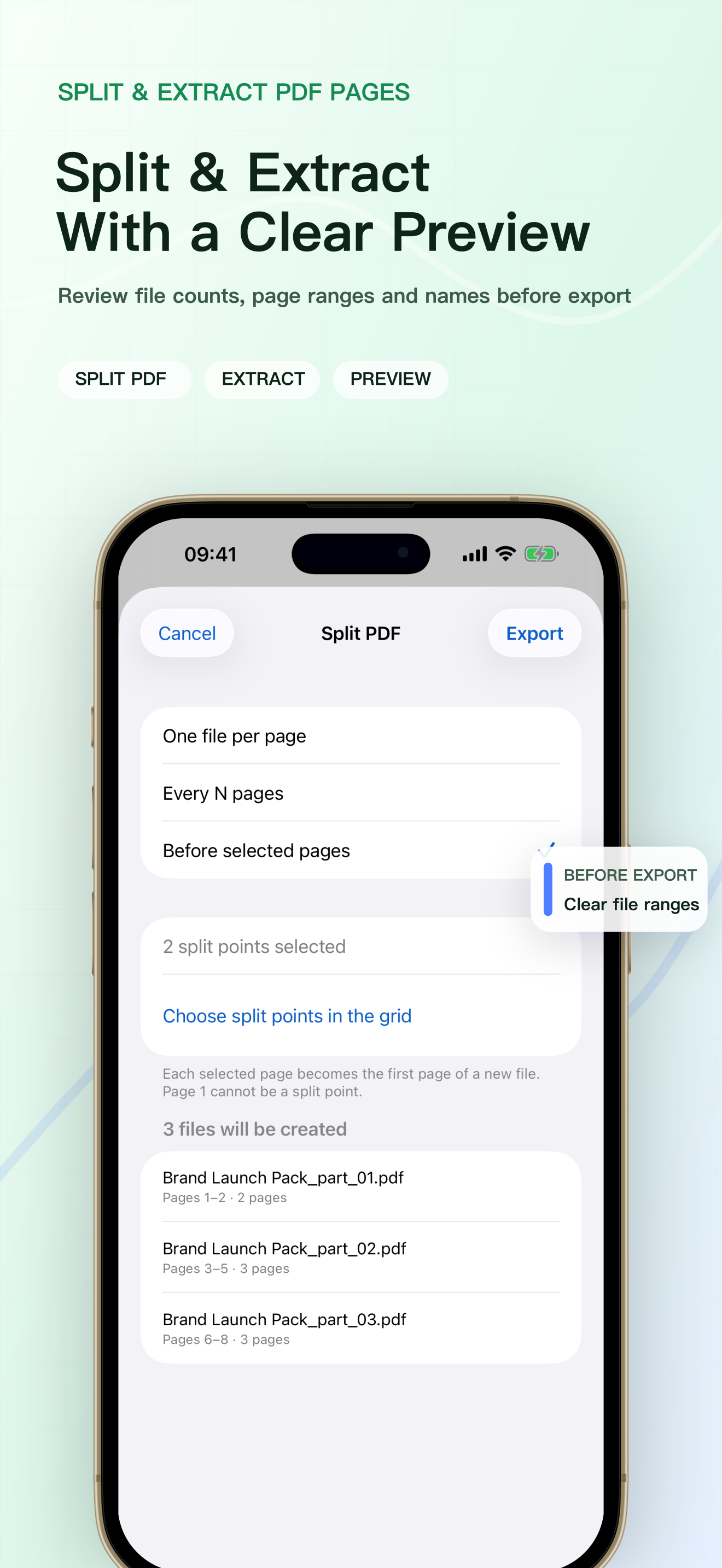
Choose a split by individual page, a set number of pages, or selected positions. Before export, review the output count, each page range, and filenames. Check that chapters do not break at unintended points and that the closing pages are included. If you only need one excerpt, use extraction instead.
-
5. Open the exported files before delivery
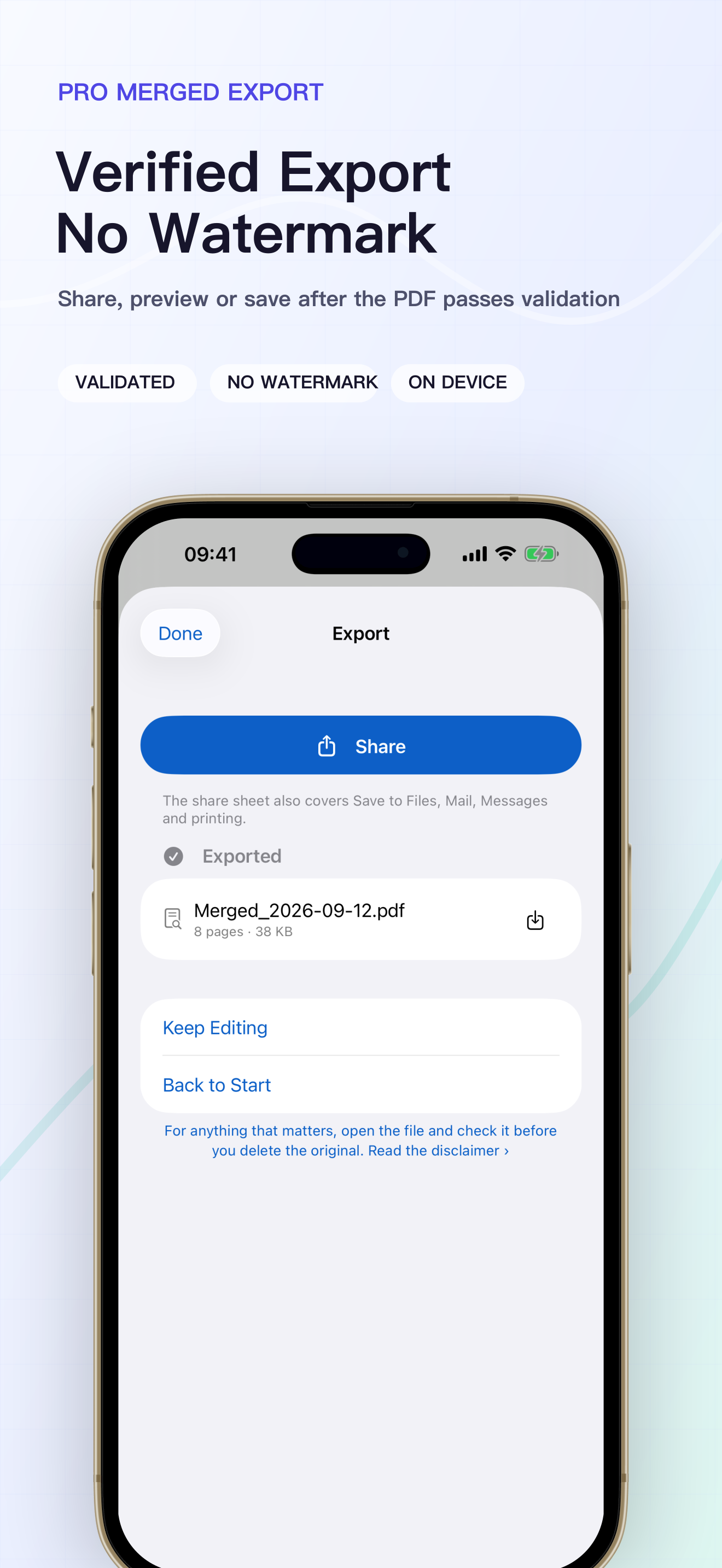
Open the exported result before saving or sharing it, and check the page count, order, orientation, crop area, and readable text. For split outputs, verify that each filename matches its contents. An export-complete message is not a content review; the merged-export example in the screenshot is a Pro workflow.
Know the limits
- Cropping changes the visible page area; it does not redact the hidden content. Use a dedicated PDF redaction tool for sensitive information and inspect the resulting file.
- Page editing is free at any length. Free exports are limited to one source PDF up to 10 pages; check the allowance shown in the app. Larger documents, multi-source merged exports, splitting or extracting into separate files, and exports beyond the free allowance require Pro. Pro offers a yearly plan or a one-time purchase at the current App Store price.
- Page organization does not perform OCR, file compression, or electronic signing. Use an appropriate separate tool for those tasks and retain the unprocessed originals.
Common questions
Will importing and editing overwrite my original PDF?
The app edits its own imported copy rather than modifying the selected original in place. Use a distinct filename when exporting so you do not accidentally replace a file when saving to Files or another service.
Why does Pro appear when I export after editing?
Editing and export access are separate. Exporting documents longer than 10 pages, merging multiple source PDFs on export, splitting or extracting into separate files, and exporting beyond the free allowance are Pro workflows. Review the feature and entitlement in the prompt before deciding whether to purchase.
Can I crop out a name or ID number to remove it securely?
Do not use cropping as redaction. Content outside the crop area may remain in the PDF and be revealed by another tool. Use a dedicated redaction tool and verify the file, rather than checking only its visible appearance.
Continue preparing your document
Choose the guide for your next step. These workflows use separate apps; review the result and the recipient’s requirements after each step.
Try it in PDF Page Organizer
Check the App Store and in-app information for feature access, current pricing, and purchase terms. The interface may change with updates.
Download on the App Store