How-to guide · MM Studio · October 7, 2026
Prepare a JPG for a pixel and KB upload limit
A photo upload may require JPG format, specific pixel dimensions, an aspect ratio, and a file-size limit at the same time. Write down those rules before editing so you can check each one. This guide reflects Photo Compressor: Resize to KB 1.3 on iOS 16 or later. The app reports its output against your selected target; the receiving website applies its own validation.
Step by step
-
1. Record the recipient’s current requirements
Read the current submission page and note the format, width and height, aspect ratio, and size limit or range. Check any background, head-position, or clarity requirements too. Do not select a preset based only on a label such as “1-inch” or “2-inch”; similar uses can require different pixels. Keep the clear original for another attempt.
-
2. Choose the photo and adjust the crop
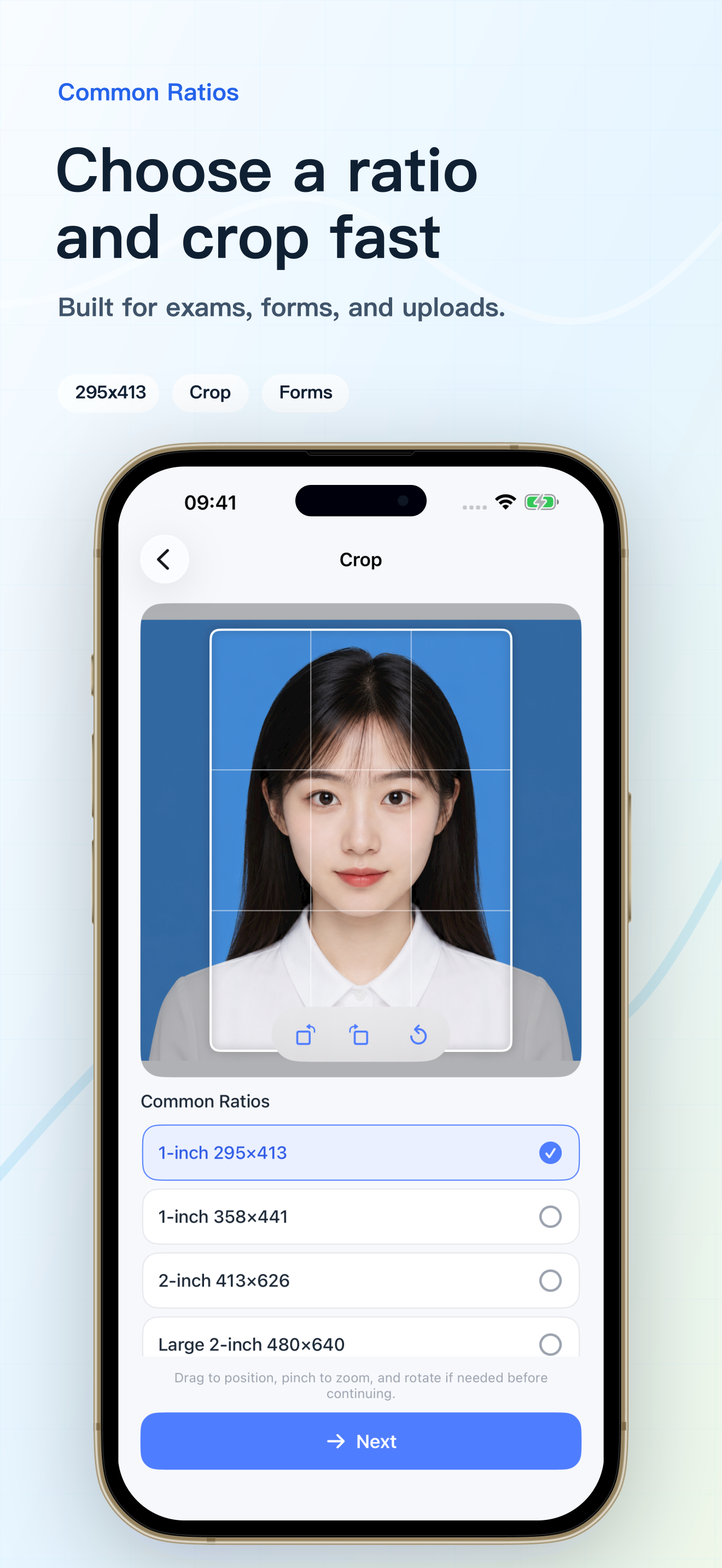
Select an existing image with the system photo picker. Drag it, pinch to zoom, or rotate left or right by 90 degrees to correct its orientation. Choose a suitable ratio and check that the top of the head, chin, shoulders, or document edges stay within the frame. Reset the position and recrop if necessary.
-
3. Check a preset or enter Pro custom dimensions
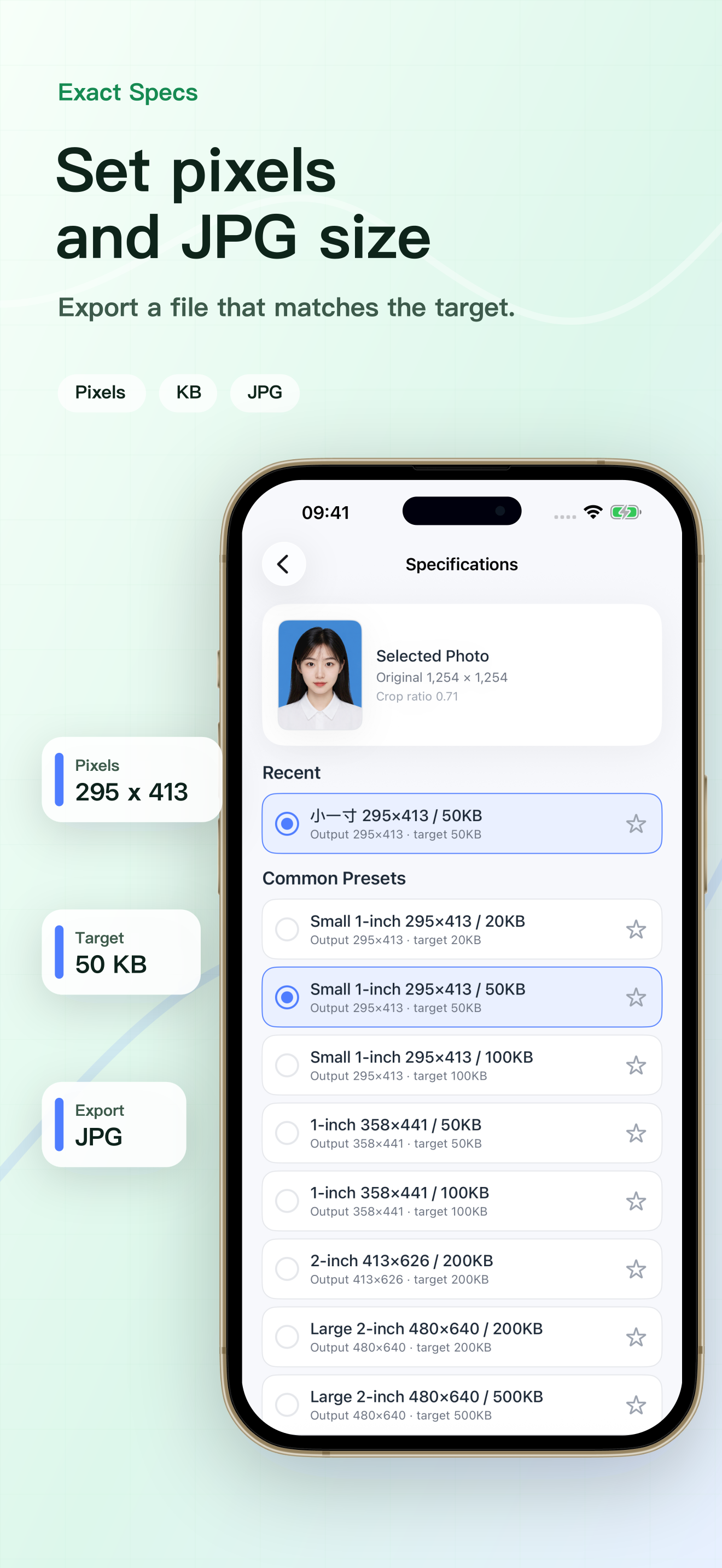
Choose a preset that matches the requirements and check its width, height, and target KB together. If none fits, Pro supports custom dimensions and a custom size target. Do not change required pixels just to shrink the file. If the rule says strictly less than a limit, allow some room below it and check the actual result.
-
4. Inspect the actual result and image detail
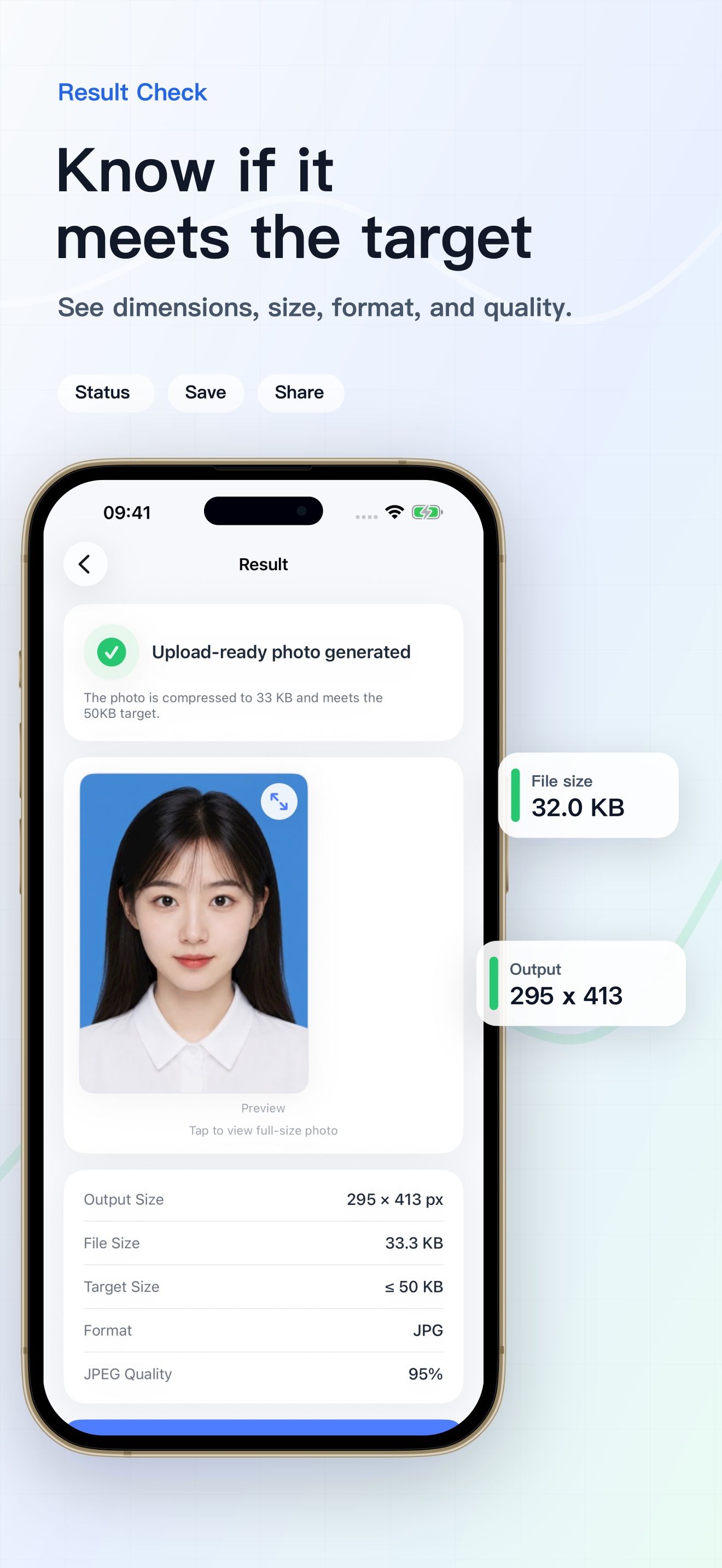
After generation, check the output dimensions, actual size, JPG format, JPEG quality, and target status. Inspect facial detail, hair edges, or text for visible degradation. A size shown in a sample screenshot belongs to that example; your photo can produce a different result. If the target is not met, review the specifications and crop, then compare a revised result.
-
5. Export the JPG and check it at the destination
Save the result to Photos or export through the system share sheet. At the submission page, choose the processed JPG rather than the original or a screenshot of the result screen. Review the website’s preview and any error. If the size is acceptable but the upload is rejected, recheck format, pixels, background, and content rules rather than repeatedly reducing KB.
Know the limits
- Custom width, height, target KB, and unlimited exports require Pro. Review the plans, renewal terms, and current regional prices on the purchase screen before buying.
- Target KB is a processing goal. The result depends on the source and selected specifications, and a smaller file still needs a visual check.
- The app is not affiliated with application, exam, school, or government platforms. Their rules can change, and meeting pixel and size limits does not establish that a photo passes their content review.
Common questions
Why check pixels, aspect ratio, and KB separately?
Pixels describe output width and height, aspect ratio describes its shape, and KB measures file size. A small file can still have the wrong dimensions. Correct dimensions can still fail background or content rules. Compare each requirement with the submission page.
What if the photo meets the KB target but looks blurry?
Compare the result with a clear original. Avoid starting from a blurry or repeatedly compressed copy, and avoid excessive enlargement while cropping. If the recipient permits it, use a less restrictive size target, regenerate, and inspect again. Do not submit a result whose face or text is difficult to recognize.
Which Pro purchase options are available?
The App Store description lists monthly and yearly auto-renewing subscriptions and a one-time purchase option. Check the in-app purchase screen for the plans, prices, and terms offered in your region, including whether the selected option renews automatically.
Try it in Photo Compressor: Resize to KB
Check the App Store and in-app information for feature access, current pricing, and purchase terms. The interface may change with updates.
Download on the App Store