How-to guide · MM Studio · October 7, 2026
Make a transparent PNG from your paper signature
Start with a clear photo of your own signature, or a signature you have permission to use. Signature PNG removes the paper background so you can place the result as an image in a document tool that supports transparency.
Step by step
-
1. Take the photo first, then import it
Photograph the complete signature on a flat sheet in even light, avoiding strong shadows. Take the photo with the system Camera app, then import the JPG, HEIC, or PNG from Photos or Files, or choose an existing image. Keep the source image for comparison during repairs.
-
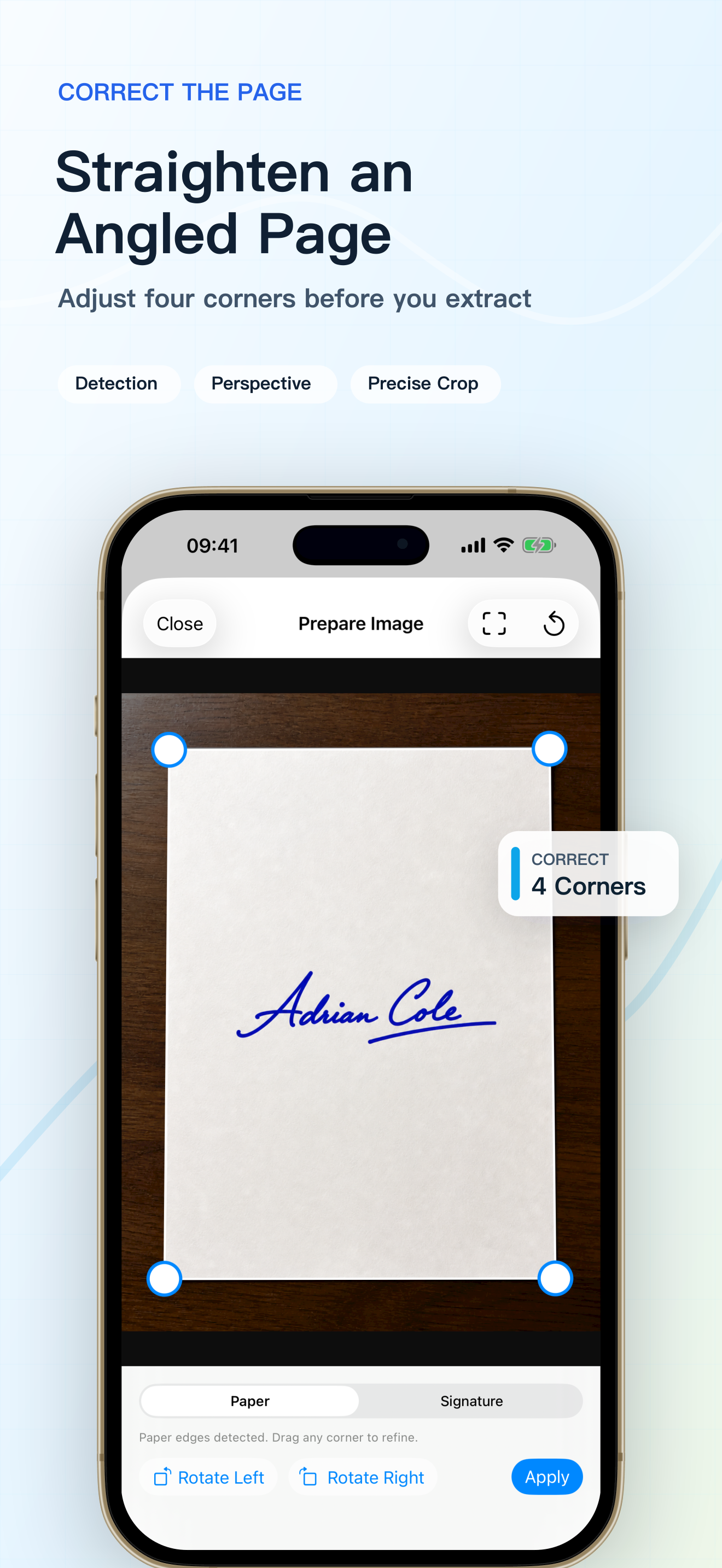
2. Straighten the page and leave room around strokes
Rotate the image into position, then adjust the four page corners to correct perspective. Select the signature region with room for long underlines, small dots, and disconnected strokes. If a clipping warning appears, go back and expand the selection in the indicated direction.
-
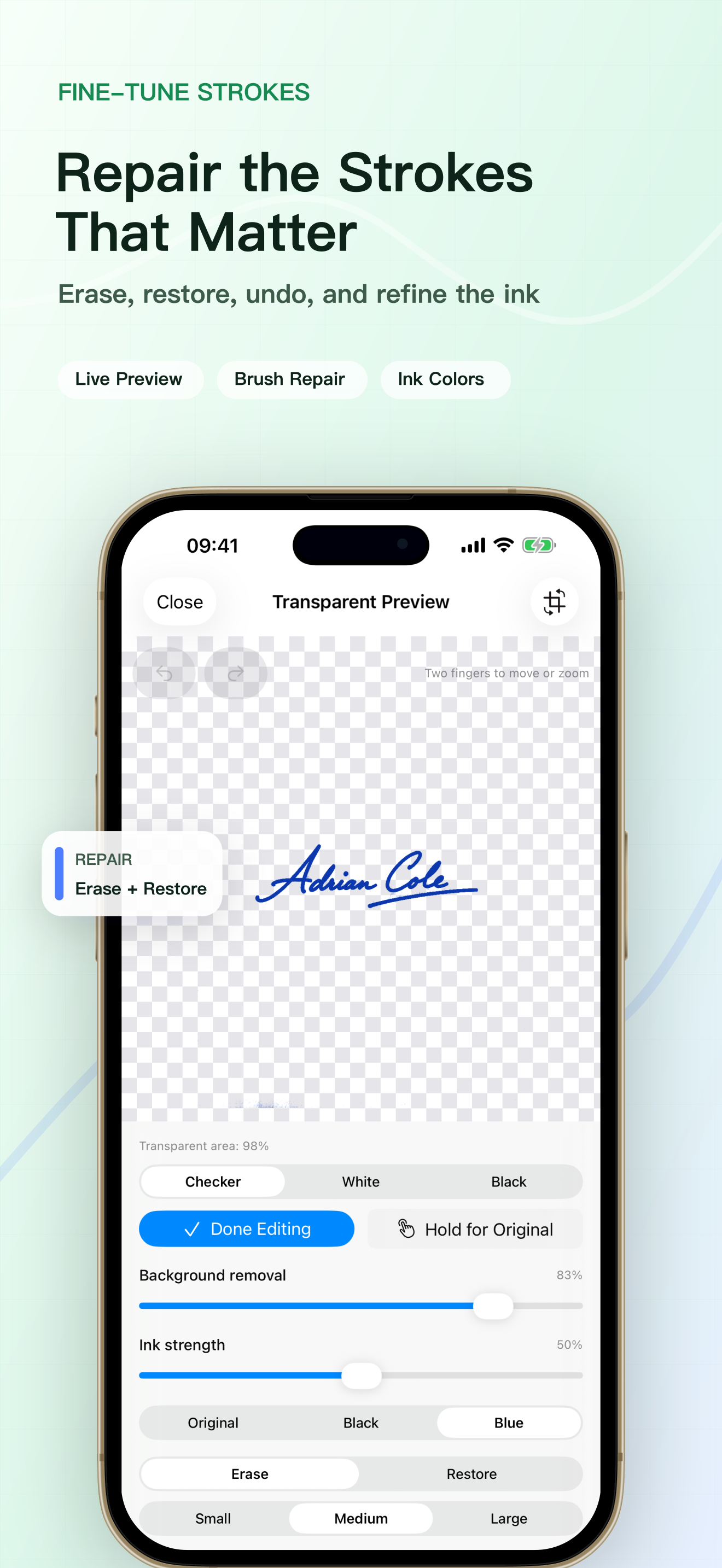
3. Remove the background and repair fine strokes
Adjust background removal and ink strength gradually, watching for faint strokes that disappear with the paper. Zoom in, restore fine lines, and erase stray specks. Undo a repair if needed, and compare with the source so that removing a shadow does not also remove part of the signature.
-
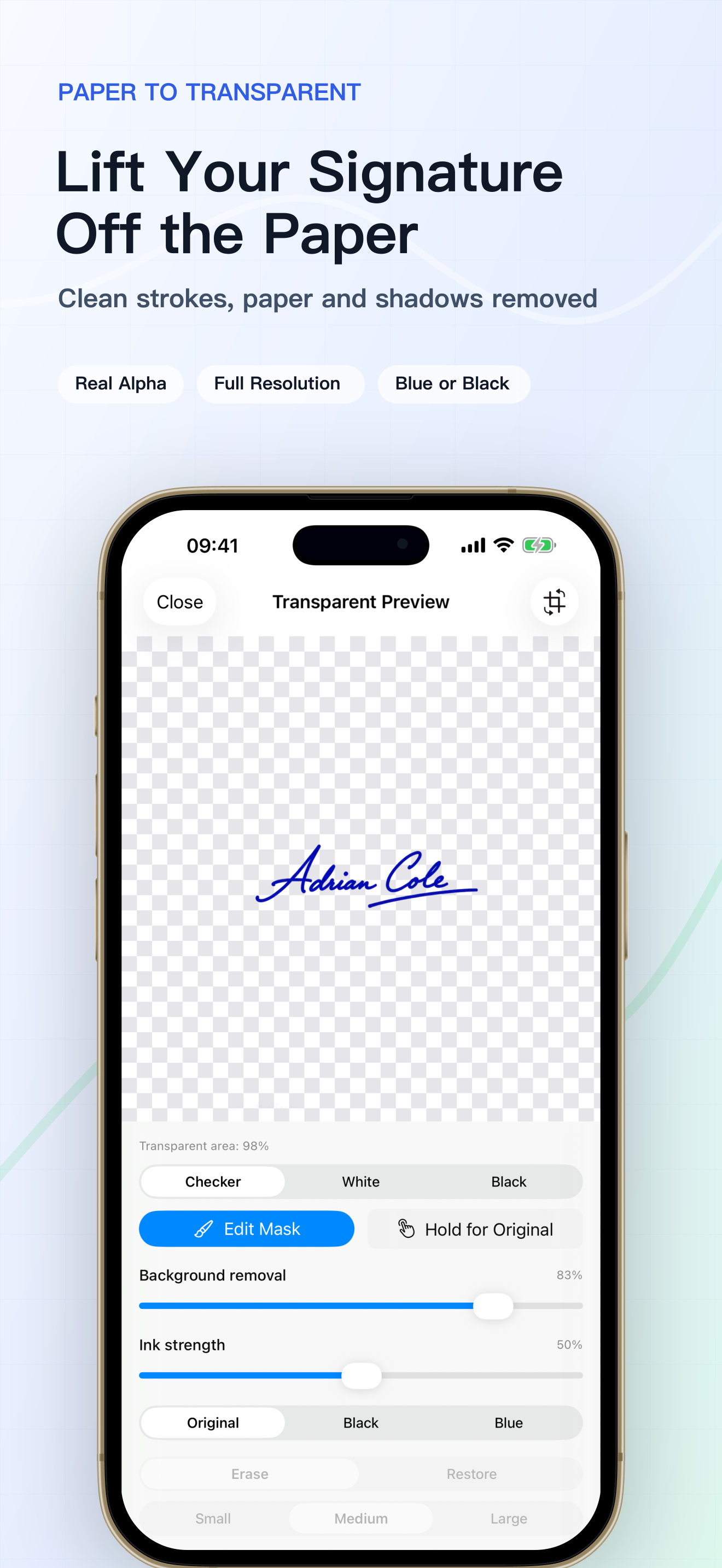
4. Inspect the result on different backgrounds
Check the result on checkerboard, white, and black backgrounds, then zoom into edges, gaps, and remaining paper. Keep the original ink color or choose black or blue for the document. A small transparent margin helps preserve edge details; avoid cropping the strokes flush with the boundary.
-
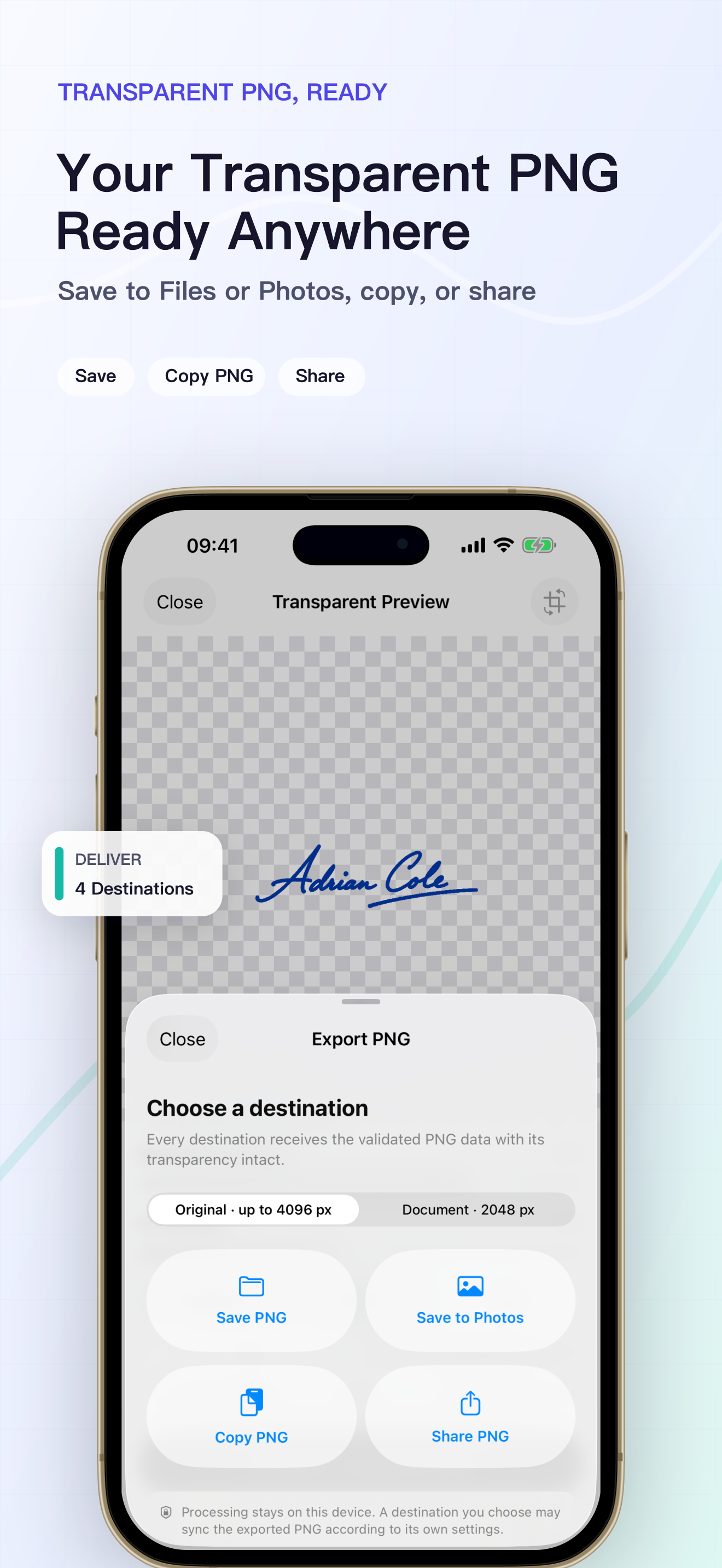
5. Save the PNG and check it in the destination
Choose an export size for your use, then save to Files or Photos, copy the PNG, or use system sharing. Insert it into the destination document and check its clarity and background after resizing. Keep the source and exported file in an appropriate location, and check the recipient before sharing.
Know the limits
- A transparent signature image does not verify identity, certify an electronic signature, or determine a document’s legal validity. Confirm the accepted signing process with the recipient.
- This workflow imports an image from Photos or Files; the app does not provide direct camera capture.
- An exported image may be synced or backed up by the Photos, Files, or sharing service you choose. Select its destination with care. The first signature result is free to export, including repeat exports. After that, choose a one-time current-signature unlock on this device or restorable Lifetime Access. The current-signature unlock does not transfer through Restore Purchases. There is no subscription; the current App Store price applies.
Common questions
Why does the exported image still look white?
Some viewers display white behind transparent areas. Place the PNG over a colored document background to check it rather than judging from the viewer’s background alone. Keep the file as PNG when transferring it; JPG does not preserve transparency.
Why is a dot or long underline missing?
Return to the signature-region selection and expand it to include disconnected dots and long strokes. If those details are in the source but become faint during extraction, reduce background removal or use the restore brush, then inspect again.
Why will an iCloud image not import?
The system may need to download the original image first. Retry with a connection, or download the original to the device and import it from Files. Use an image with legible strokes rather than a low-resolution preview.
Try it in Signature PNG
Check the App Store and in-app information for feature access, current pricing, and purchase terms. The interface may change with updates.
Download on the App Store